Showing posts with label computer. Show all posts

4 Things You Should Know About When You are Online


When you connect to the internet you can harm your PC. That is a fact. The reason antivirus software and other similar products where created is to protect your PC.
4 Steps You Should Take When You are Online

4 Steps You Should Take When You are Online

It is not your fault that you got viruses, however you should take the precaution methods to stop this from happening again.

Keep PC Clean: It is important that your PC stays clean if you use the internet. Clean from the 'bad, harmful objects' that are also known as spy ware, adware or viruses.

There are many different types of harmful objects but luckily there exist also cure to keep your PC protected.

A must use Software: The two most important software you must have are an antivirus and an anti adware. There is no need to purchase 30 different kinds of anti spy ware software...

However you must choose two software which will protect your PC. These will work in the background automatically. Some anti adware products also heal spy ware not just adware.

Schedule Maintenance: The software will block spy ware and adware. However you should also use the software when you are offline. You should scan your
PC using both software at least once every three weeks. That will clean any harmful objects. These objects can make a lot of harm to your PC.

Safety Measurements: We already mentioned that you need two software to keep ongoing protection on your PC.

If you download software/movies/images/videos or any other thing from the internet it is recommended that you scan those items. Before opening them right click on them and use your antivirus to scan them.

Go to Control Panel to turn on Firewall. Firewall is also an ongoing protection which is very important.

Once you have your software installed these protect your PC and you get back the freedom you deserve. Remember that prevention is better than cure.
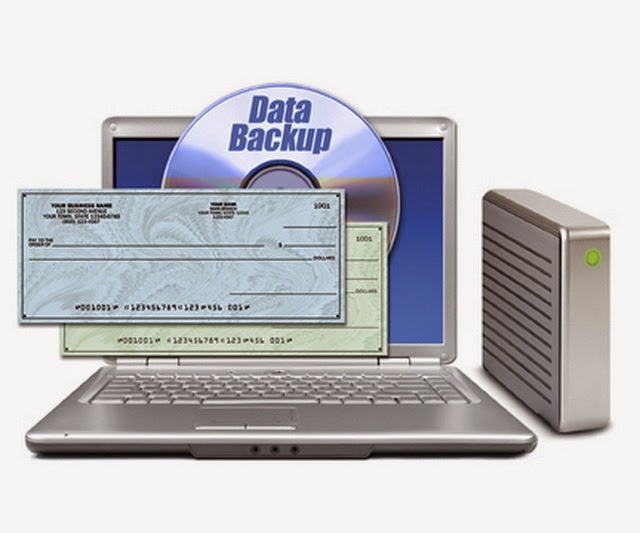
See Why You Should not Try Data Recovery Yourself

In the world of computers, data recovery is something we all know and rely on to recover lost of missing data.  The process of data recovery is very complicated, one that you should never attempt to do yourself.  Hard drives especially, are very fragile and need extra special care when they are worked on.  You have to be careful with the small components inside of them, which is why only a trained specialist should be attempting data recovery.

When you first take your hard drive to a specialist, they will perform an evaluation then get back to you and tell you the problem, as well as the cost.  When most people get their price quote, they immediately think the price is too high.  As this happens, the individual will decide to try their own data recovery.  This isn’t the smartest idea, as it normally results in your data being lost forever.   In most cases, where individuals attempt data recovery themselves, the data is so far gone that even the best data recovery specialist can’t bring it back.

When the hard drive crashes and data cannot be accessed, most people will think about using a disk repair utility.  This isn’t a good idea, as the software will normally write to the disk, causing the data that is currently stored to be overwritten.  These types of software programs can be very complex, and in most cases, won’t fix the problem.  They should be avoided at all costs, for the simple fact that they won’t bring back your data - they will only make things worse.

Another common mistake people make, that should never be attempted, is to open up the hard drive and try to rebuilt it.  Hard drives are full of very delicate components, many of which are very small, and very fragile.  The platters are the most sensitive inside of the hard drive, as they are small and contain a layer of magnetized material.  This material is very fragile, and sensitive to debris, dust, and especially your fingerprints.

If you don’t know how to handle the platters, you can easily scratch their surface, which could indeed damage them forever.  There is a spindle inside of the drive, which constantly moves the platters.  A motor is there as well, which determines the speed that the platters revolve.  The platters store data for the entire drive, which is accessed by an actuator arm.  When the hard drive is in operation, the platters and the actuator arm move at very fast speeds, which is why everything has to be perfect.

If you go to tamper with the drive and attempt to rebuild it yourself, you’ll more than likely damage something.  The technicians that work with data recovery on a daily basis are experts with hard drives, and know exactly how to handle the devices.  They know how to handle the platters, the actuator arm, and how to put everything back in a complete working fashion.

Some people out there have been told that hitting or even dropping a hard drive can fix common hardware problems.  This is not the case, as hard drives can easily break if they physically abused in any way.  The interior components are very fragile and do not react well at all to any type of abuse or physical mistreating.

Whenever something happens to your hard drive and you lose your data, you should always leave it to the data recovery experts.  Companies who specialize in data recovery can recover your data, and do it the right way - which can save you time and money in the long run.

What is the FAT and NTFS system and better between the two??

File system is the most widely used techniques for storage and widespread in the world and at the level of many devices , such as hard disk drives and storage switches and optical discs such as ( CD / DVD ) and others. And used this technique for the purpose of writing files stored on a specific area and called CLUSTER devices or SECTOR even be adjustable data and restructuring .And different storage technologies into several different techniques with several features and possibilities by evolution , and thus we decided the world of professional computer family put this topic in order to understand more of these systems .
 Operating system files "Fat" File Allocation Table: 
What is known as a table " File Allocation " means scheduling files for easy access to it and its two Fat16 old type began in 1980 and Fat32 which has spread recently since 1996 and is a development of the type of the former as it is used in larger areas larger than 2 GB House for partition one reverse the former type . appeared with the beginning of operating systems "WINDOWS 98" and "WINDOWS 2000" can also be used as a file storage system in advanced operating systems such as system "XP".
 Operating system files " NTFS
 "And is the latest technology and systems, and considered the most powerful and the best  in dealing with files and storage capacities high which is supported by several versions of operating systems "XP, NT, 200" It is also available on many features that make it the best in its predecessor and reflected these advantages in being :- Protected file storage system allows secure greater volume either by giving a password for users who are authorized to deal with them or offers a secure level by encrypting files
.- Allows better use of the available space of the volume and the ability to store files small size in a smaller space .
 - The ability to recover deleted files and data . 
- More stable and easier to deal with hard .

http://static.ddmcdn.com/gif/adding-a-hard-disk-1-1.jpg 

But who is the best among these systems?I can not say better because everything is special , but his cons we can say :
This is advisable to run the FAT file storage system 32 of the divisions that contain operating systems while the other divisions or other Alberthinat , recommended the use of modern and sophisticated system NTFS for easy extraction and protection of data and files . And each user choice;You do not forced to this rule but you choose the best
storage system that suits the nature of your work .

This simple picture has decided to share with you the difference between the two systems show
https://encrypted-tbn1.gstatic.com/images?q=tbn:ANd9GcRwUFzkGnKJd9M3DHFonItua-Mb70tXRvdJ-uS1ALTHMDiHsDuX
 

How to regain 20% of the flow of the Internet maintained by the windows without using them

People use the internet but they don't know that their computer hide 20% of internet speed without even using it  an this time i'll show you how to regain that 20%  of internet with simple stpes :
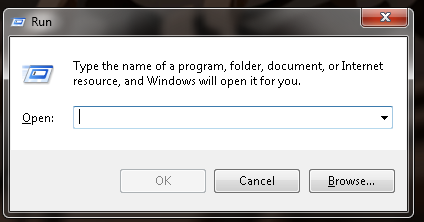
1)_ open run ( windows button + r)
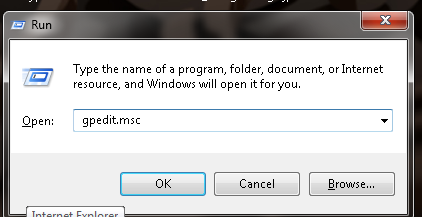
 2)_ copy this "gpedit.msc " 
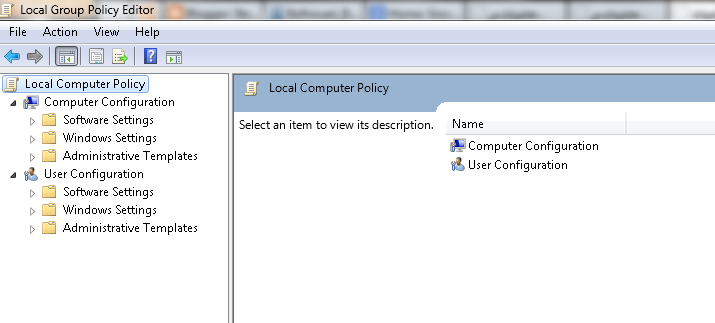
3)_ you'll get this windows :
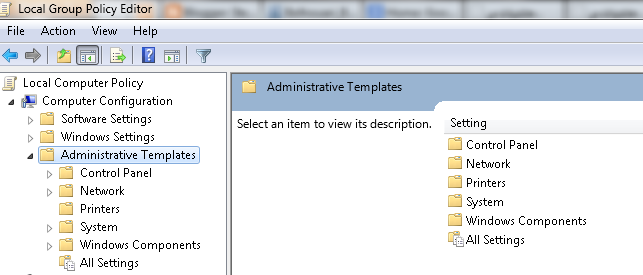
4)_  Go to " Administrative templates " :


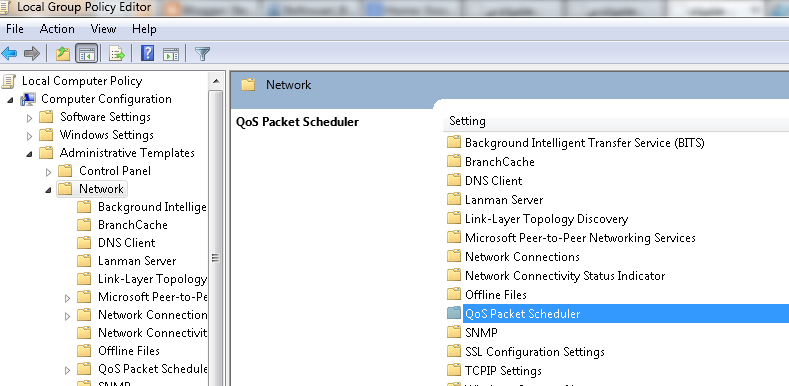
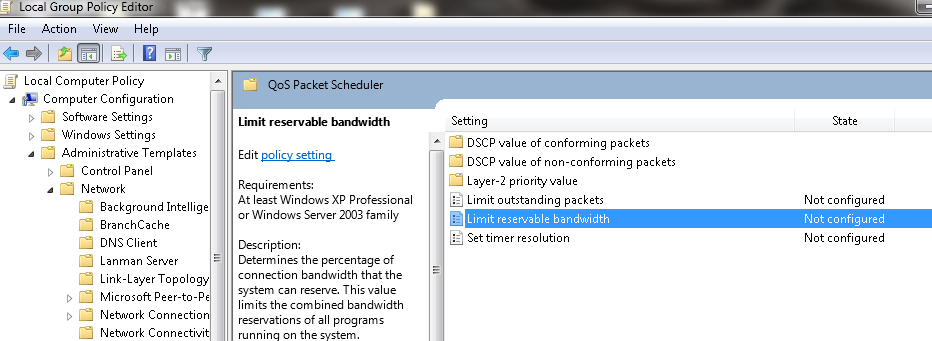
5)_ Go to " Network " and get in " QoS Packet  Scheduler "
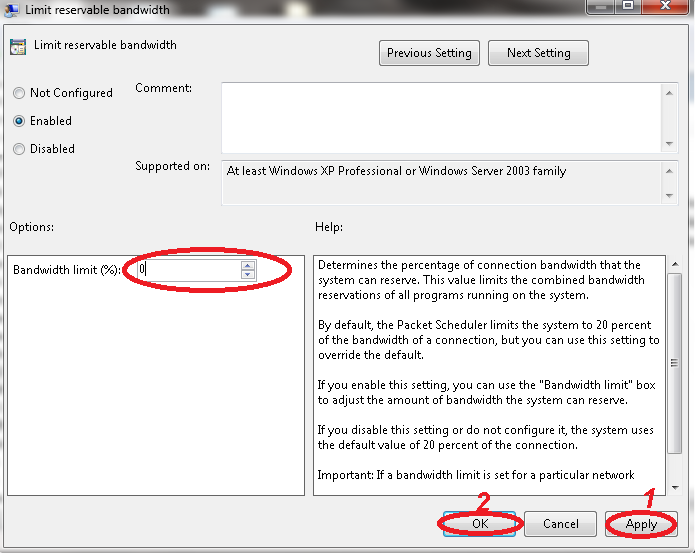
6)_ Double click on " Limit reservable bandwidth "


7)_ Now just do as you see in this picture :

I hope this trick helped you , if you have any question just leave it in comment , and don't forget to share this article with your friends.

How to Activate 3D in Win 7 and Win 8

Lately i saw a lot of people sharing pictures of computer screen with a lovely addition i mean the 3d option so i try to look for a simple way to do it so just follow the below steps to do it :

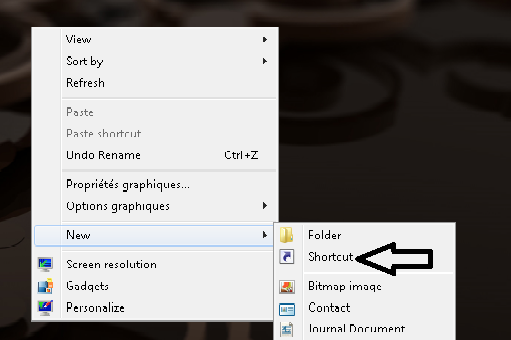
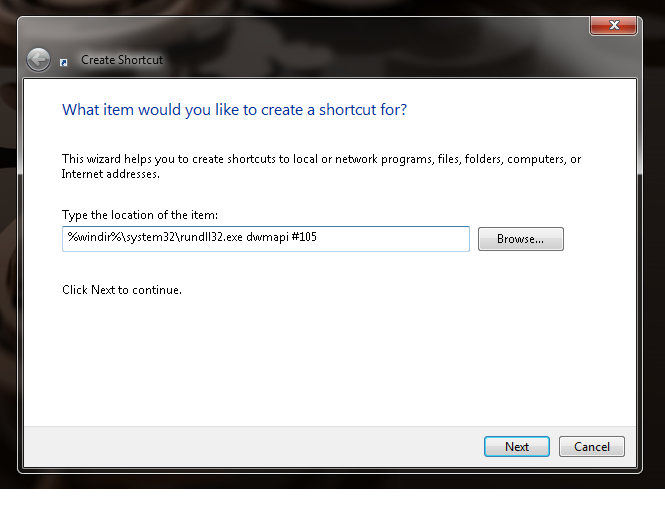
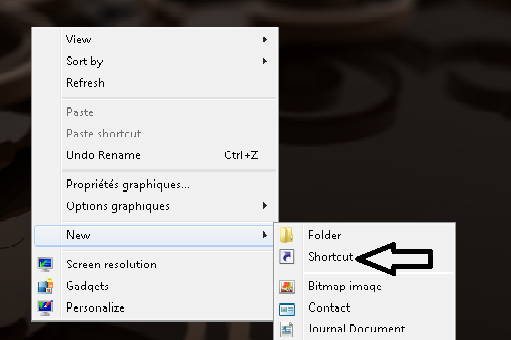
1)_ let's try to make a shortcut :


2)_ Now copy this code : " %windir%\system32\rundll32.exe dwmapi #105 "

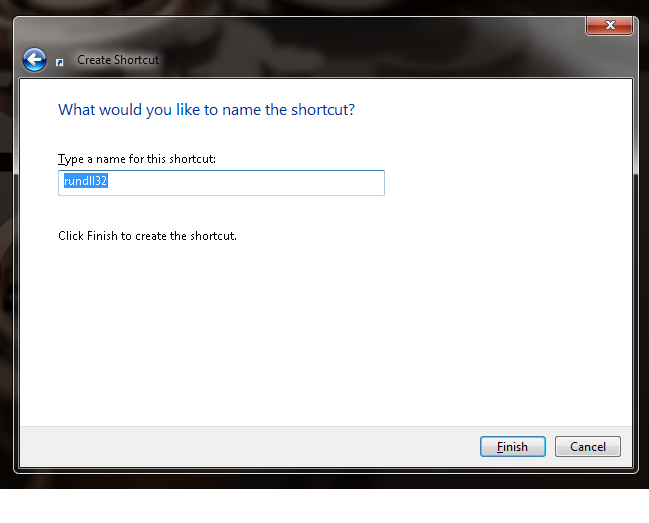
3)_ click next and give it a name

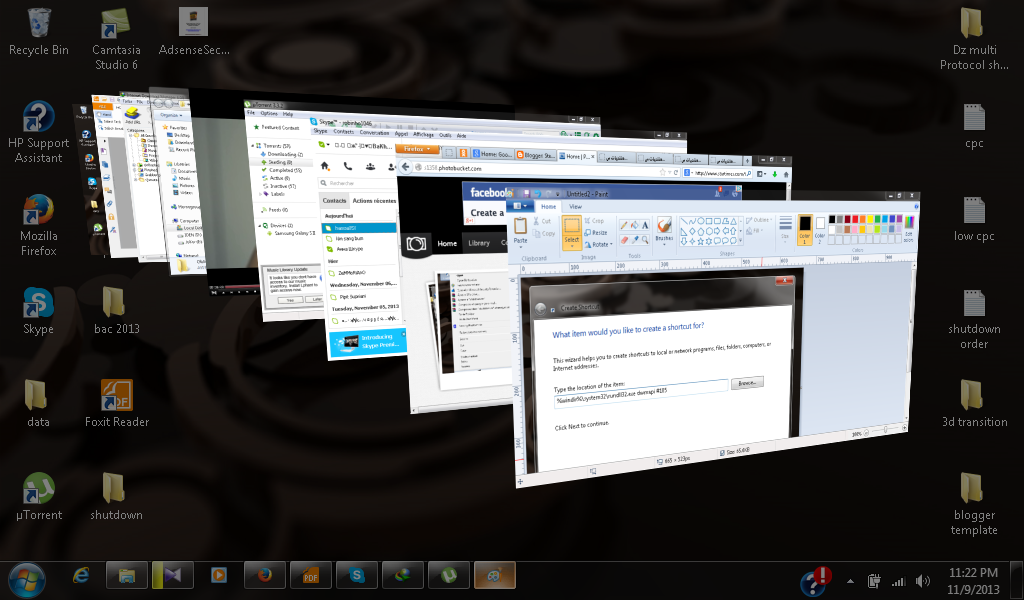
4)_ Now open the shortcut and get the result


How to Create shutdown button

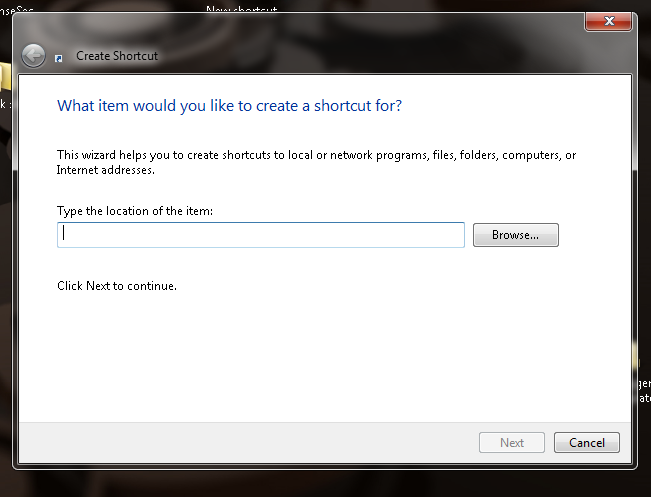
a lot of people ask me how they can create shurtcuts so they can do some stuff easy and today i just want to share with you  a way to creat shutdown shortcut  it's so simple and easy and it doesn't take to much time to create a shutdown shortcut .
so follow the steps below :

1)_

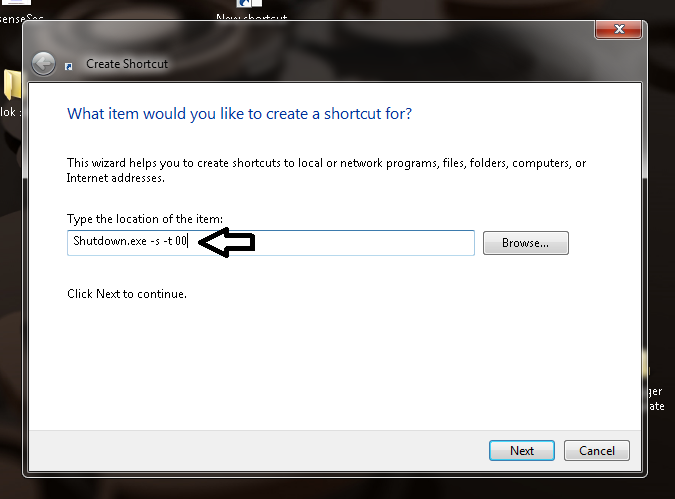
2)_


3 ) write : " Shutdown.exe -s -t 00 " ( the 00 is the second that your computer will take to shutdown)


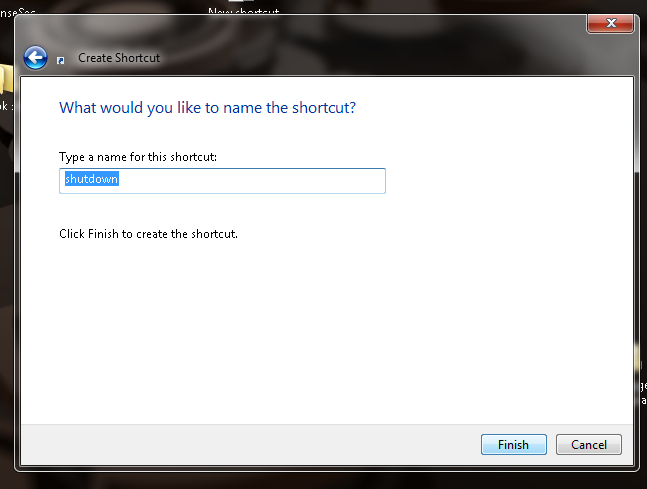
4)_ click Next  , and you'll see tha neme of your shortcut you can change it if you want .

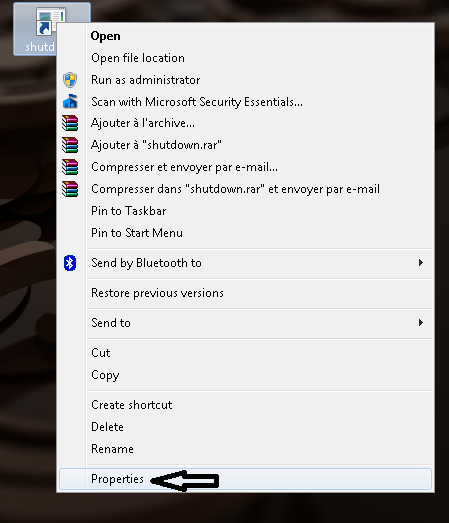
5)_ after you click finish you'll get your shutdown icon , so let's give it an icon image to identify it .

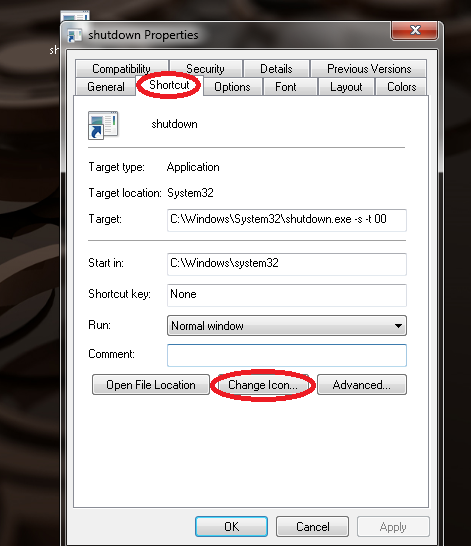
6)_ now you'll see the properties of the shortcut so just click on shnge icon .


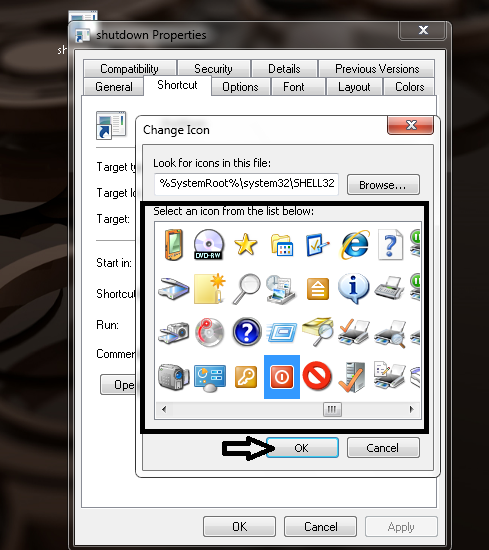
7)_ after you click on change icon it's will show you the system icons and even so you can choose and icon from your data in computer .

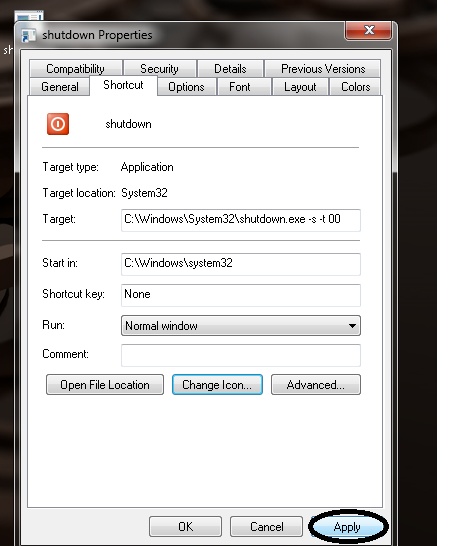
8)_ fter you choose an icon just click ok and " apply " what did than click " ok "  :


and here our tutorial end so i hope you like it , remember to share .

Db9 schema for shiring

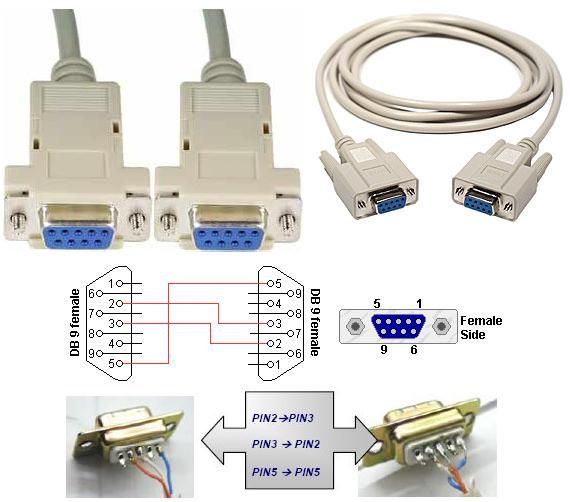
Lately most of the people use DB9 cables for shiring in their receivers to watch scrambled channels but some of them don't know how this kind of cables work or how it's schema look like even so there is some people who want to make a long distance cable so they can move to any place they want easily  and without any problems so they should know how DB9 schema look like and what they suppose to do to make work perfectly .

the first thing that you should do before making your cable ready is that you get your receiver and and computer ready for this by getting shiring programs like Obox, gladiatore ...etc and for the reciever you should set the protocol you want to use ( twin protocol or Gbox sssp ) for people who have starsat 1200 D with tiger update  it's ECM .

so the below picture show you how the schema of DB9 cable look like :


Don't waite and share this articles with other so we can all learn new things together .

DriverPack Solution Professional 13 R390 Final Full

 
DriverPack Solution Professional 13  an updated version of the powerful program that can automatically install the drivers on your computer. This version has many new features and optimized for all platforms (x86-x64), and also supports the new operating system Windows 8.

Advantages DriverPack Solution:

• Automatic driver installation: install all the drivers on virtually any computer for only about 5 minutes
• Save time: no need to spend time searching for drivers, install a few clicks
• Any driver for any computer all drivers on a single DVD-ROM! Simplify downloading new drivers from the Internet
• Ability to update drivers: update the existing driver to more recent versions
• Windows XP / Vista / 7/8 (x86-x64): supports all modern operating systems! As 32-bit and 64-bit versions!
• Ease of use: Simple and intuitive interface
• Ability to self-refinement: The open source

Program is used:

• home computer users
• System Administrators
• Computer Wizard
• Service for computer repair
• other people who are often faced with installing / reinstalling Windows

Pros of using:

• interface is friendly and intuitive
• intelligent technology classification drivers
• Multiple installation options (for the professional to the novice user)
• multilingualism (does not require linguistic knowledge and effort): English, Russian, Ukrainian, German, French, Italian, Spanish, Turkish, Azeri, Dutch, Lithuanian etc...
• Check the availability of new versions of software

Functionality DriverPack Solution 13:

• Efficient and fast search for drivers
• installation of drivers on virtually any computer, just a few minutes
• an "downgrade" from Windows Vista to Windows XP (even if the manufacturer has not posted on its website the driver under Windows XP)
• search and download the missing driver from the Internet, according to set parameters of the driver
• Quickly update an existing set of installed drivers to more recent versions
• Assist in creating and using your own database driver
The program is suitable for all models of computers. That includes drivers for laptops:
Acer, ASUS, HP, Dell, MSI, Samsung, Toshiba, Sony, Lenovo, Fujitsu, Fujitsu Siemens, eMachines, Packard Bell, Clevo, BenQ, Notebook, IBM, Apple, Intel, LG, Compaq, Depo, NEC, Gericom, Matsushita, Medion, K-Systems, Gigabyte, SiS, Gateway.
It will help download free drivers for:
Motherboard, sound card (audio), Video Card, Network Card, Wi-Fi, chipset, controller, Bluetooth (bluetooth), Modem, Web-camera, card reader, CPU, input devices, monitor, printer, scanner, USB, Other ...


Download Windows 8 Add-On

Windows 8  has many new things that make it take the upper hand in operating systems even so there are so many users who see that windows 8 needs so many add-on and programs to make it easy to use , so today i took sometime to search for the best add-on for windows 8 to make sure that you can have everything you need in your computer.


 I put a collection of programs I always install on a new PC with windows 8 :

 -Classic Shell (adds start menu .taskbar back!)

-Access control TWEAKERUI (can disable or put to quiet to rid annoying popups) handy when install new software. wizard backs it easy to turn on and off but reboot is needed

-Desktop Gadgets.. get your favourire CPU meter and clock down the right side

- Process Lasso.. like task manager but can monitor and control programs.this is the free version only but you can upgrade  .

-Teracopy

-Live Mail Installer

-and more tweaks like adding gpedit for home versions

just unzip.unrar the enclose file to a folder  and install each as normal


Download WIndows 7 ISO

Download WIndows 7 in iso and install it on your notebook or laptop usig Usb or CD fast:

Download WIndows 7 ISO


if you windows cd is broken or you didn't have a win7 microsoft put all the windows 7 versions on her server so anyoen can download a trial version all you need to do is to download the iso files from the links below.

  • Windows 7 Professionnel x64 (64-bit)
Anglais: http://msft-dnl.digitalrivercontent.net/msvista/pub/X15-65805/X15-65805.iso
Allemand: http://msft-dnl.digitalrivercontent.net/msvista/pub/X15-65813/X15-65813.iso
Français: http://msft-dnl.digitalrivercontent.net/msvista/pub/X15-65811/X15-65811.iso
Espagnol: http://msft-dnl.digitalrivercontent.net/msvista/pub/X15-65843/X15-65843.iso

  • Windows 7 Professionnel x86 (32-bit)
Anglais : http://msft-dnl.digitalrivercontent.net/msvista/pub/X15-65804/X15-65804.iso
Allemand: http://msft-dnl.digitalrivercontent.net/msvista/pub/X15-65812/X15-65812.iso
Français: http://msft-dnl.digitalrivercontent.net/msvista/pub/X15-65810/X15-65810.iso
Espagnol: http://msft-dnl.digitalrivercontent.net/msvista/pub/X15-65842/X15-65842.iso

  • Windows 7 Home Premium x64 (64-bit)
Anglais: http://msft-dnl.digitalrivercontent.net/msvista/pub/X15-65733/X15-65733.iso
Allemand: http://msft-dnl.digitalrivercontent.net/msvista/pub/X15-65741/X15-65741.iso
Français: http://msft-dnl.digitalrivercontent.net/msvista/pub/X15-65739/X15-65739.iso
Espagnol: http://msft-dnl.digitalrivercontent.net/msvista/pub/X15-65771/X15-65771.iso

  • Windows 7 Home Premium x86 (32-bit)
Anglais: http://msft-dnl.digitalrivercontent.net/msvista/pub/X15-65732/X15-65732.iso
Allemand: http://msft-dnl.digitalrivercontent.net/msvista/pub/X15-65740/X15-65740.iso
Français: http://msft-dnl.digitalrivercontent.net/msvista/pub/X15-65738/X15-65738.iso
Espagnol: http://msft-dnl.digitalrivercontent.net/msvista/pub/X15-65770/X15-65770.iso

  • Windows 7 Entreprise [English 60 days trial]
32-bit (x86): 7600.16385.090713-1255_x86fre_enterprise_en-us_EVAL_Eval_Enterprise-GRMCENEVAL_EN_DVD.iso
64-bit (x64): 7600.16385.090713-1255_x64fre_enterprise_en-us_EVAL_Eval_Enterprise-GRMCENXEVAL_EN_DVD.iso


_________________________________________________________________________________

Of course, although these versions come from microsoft servers, they do not excuse you have a serial number in order to activate windows beyond the trial period.

 ---------------------------------------------------------------------------------------------------------------------------------

Do you really need to re-install Windows on a regular basis?

 Seems to many people that the speed of Windows work slow down with the passage of time . Quite a number of people resorting to fix it by re- install the system. But do you really need to re- install Windows on a regular basis ?Reinstall Windows uncomfortable. You make a backup copy of all your personal data , then the installation process, and then re- install all your favorite programs , and restore the data. 


Why Windows slows over time?

The main reason for reinstalling Windows is slowing down over time. But why Windows systems slow down with the passage of time ?

startup programs : Check the Windows system is likely to find many additional startup programs have been added , and consume significantly CPU , memory and other system resources in the background.Worse, it may some computers come with a huge amount of startup programs is feasible thanks to the manufacturer installed previously .

Additions Windows Explorer, and services, and more: applications that add to the list of shortcuts right mouse button you can make the files take much longer .
Other programs may prove itself as a system service . Even if they are not in the Start menu , programs can slow down the useless your computer .

 
• Heavy security programs : comprehensive security programs such as Norton are often too heavy, and consume a lot of resources to perform all its functions . You do not really need a full security program - just an antivirus program.

 
• Cleaning Tools PC: PC cleaning tools in general can make your computer slower. Therefore advised not to install multiple programs or the use of portable programs .

 
• other garbage : poorly developed software chaos may occur in the system with the DLL files are useless and fill your registry with useless entries . Bad software does not clean itself after deletion.

 
• browser toolbars : can and additions browser extensions can slow down the browser enough, such as a toolbar ASK.COM which slows terribly browser .In other words , the main reason which makes the system slow down with the passage of time is to install unwanted programs or bad. 

How to prevent Windows from the slowdown with the passage of time: 

    _To keep your Windows system and seems like a modern installation , you need to take proper care of him.
  
_Install the software that you will use only. Light and programs with an excellent reputation , which respects the system rather than slow him down .
   _
Be careful when you install programs and avoid installing browser toolbars , spyware, and other garbage programs that can slow down the machine.
   _
delete programs that do not use the control panel on a regular basis . Even useful programs running in the background and slow down the speed of the computer .
   _
Sometimes use a tool such as CCleaner or disk cleaning tools in general to remove temporary files and empty the extra space on the hard drive.
   _
Choose carefully protection programs. All you really need is to instal
l anti-virus software , and Windows 8 users do not need to install it.
  _
Use a tool management startup programs like CCleaner to shrink and remove the useless programs .Tips for software testingIf you want to test programs without allowing it to touch the system , it is advisable to install them in an imaginary system such as vmware player or virtualbox or using a tool such as sandboxing to isolate it from the rest of the system.

So when I need to reinstall Windows?

 You should not need to reinstall it on a regular basis every month or week. There are two exceptions : when you upgrade to a new version or when exposed to a virus attack is strong. If your computer is running well , you do not need to spend hours to re- installation , even if years have passed since the last time you reinstall Windows. This is an indication you've done a good job of care system.

Build Your Computer

Computer is a high technology machin that help you to store data and to send data by internet or any other devices, and so many people want to have a computer with the performance ,they want  so they can be satisfied with it .

 they look for a perfect system unit (graphic cards, sound cards, memory, motherboard and chips) and they want to get the most expensive stuff just to improve their computer performence.

nowadays we need our computers to be more faster with a very high performance because most of the new programs and games require a very good condition computer, and it become something obligatory to use the computer without any problems ,

Parts that improve computer performence:

1)_ motherboard:

A motherboard (sometimes alternatively known as the mainboard, system board, planar board or logic board,or colloquially, a mobo) is the main printed circuit board (PCB) found in computers and other expandable systems. It holds many of the crucial electronic components of the system, such as the central processing unit (CPU) and memory, and provides connectors for other peripherals. Unlike a backplane, a motherboard contains significant sub-systems such as the processor.

Motherboard specifically refers to a PCB with expansion capability and as the name suggests, this board is the "mother" of all components attached to it, which often include sound cards, video cards, network cards, hard drives or other forms of persistent storage; TV tuner cards, cards providing extra USB or FireWire slots and a variety of other custom components (the term mainboard is applied to devices with a single board and no additional expansions or capability, such as controlling boards in televisions, washing machines and other embedded systems).

2)_ RAM  (pronounced ramm):

 is an acronym for random access memory, a type of computer memory that can be accessed randomly; that is, any byte of memory can be accessed without touching the preceding bytes. RAM is the most common type of memory found in computers and other devices, such as printers.
Types of RAM:

There are two different types of RAM:

    DRAM (Dynamic Random Access Memory)
    SRAM (Static Random Access Memory).

3)_graphic cards:

A graphics processing unit (GPU), also occasionally called visual processing unit (VPU), is a specialized electronic circuit designed to rapidly manipulate and alter memory to accelerate the creation of images in a frame buffer intended for output to a display. GPUs are used in embedded systems, mobile phones, personal computers, workstations, and game consoles. Modern GPUs are very efficient at manipulating computer graphics, and their highly parallel structure makes them more effective than general-purpose CPUs for algorithms where processing of large blocks of data is done in parallel. In a personal computer, a GPU can be present on a video card, or it can be on the motherboard or—in certain CPUs—on the CPU die.

watch the video bellow so you'll know how to build your computer

Find Who's Using Fake Picture in Facebook


Have you ever been in a situation where you have received a friend request from a very attractive girl and find yourself asking whether it is her or not in her profile pictures? Trust me, you are not alone! I’m sure many of us have been in a similar situation.
It is very common nowadays  to see people use celebrity pictures or  some cute girl pictures from the internet and upload it as their profile pictures on social networking-sites.
There are many reasons why they do that. Sometimes it is because they don’t like to put their own photos online, or they just upload a fake Facebook photo to get more friend requests from opposite sex.

do you want to know wich one is using a fake profile picture  :

all we just need to do is to google and use images search to find for images by uploading an imageof the profile on google .


 follow this simple steps below 
1)_ get the link of the image by clcking on the image with the right button the cursor than click on copy the image adresse
 
no go to google image and do as the picture below shows

past the link there and click search
 and here it is the result


so from now on there's no fake people on your facebook